The Power of Simplicity: Understanding the Toggle Switch in UI Design
In the vast landscape of digital interfaces, few elements are as universally recognized and intuitively understood as the humble toggle switch. From enabling dark mode on your smartphone to activating a crucial feature in a professional application, the
toggle has become an indispensable component for managing binary states. This article delves into the essence of the toggle switch, exploring its fundamental design principles, optimal use cases, and best practices for creating user experiences that are not only functional but also elegantly intuitive.
At its core, a toggle switch is a graphical user interface (GUI) component that empowers users to effortlessly alternate between two mutually exclusive states. Think "on" and "off," "active" and "inactive," or "true" and "false." Its visual mechanism, typically a sliding thumb along a track or a similar interactive element, provides immediate, unmistakable feedback, reflecting the chosen state upon interaction. This directness is what makes the toggle so powerful: it mimics the physical switches we encounter daily, translating real-world mechanics into a seamless digital experience.
The primary purpose of a toggle is to facilitate quick adjustments to binary settings or features that require frequent state changes. Unlike traditional form submissions that might require a "save" button, a toggle switch enacts its change instantly, minimizing cognitive load and streamlining user control. This makes it ideally suited for independent on/off choices that immediately impact content visibility or functionality within an application, ensuring the state change is evident at a glance.
Anatomy of Intuition: How Toggle Switches Work
The brilliance of the toggle switch lies in its simplicity and directness. Visually, it typically presents as a small, interactive element with two distinct positions. When the "thumb" or indicator is in one position, it signifies one state (e.g., "on," active); when it moves to the other, it signifies the alternative (e.g., "off," inactive). This visual shift is often accompanied by a change in color, shape, or shadow, providing a clear cue about the current selection.
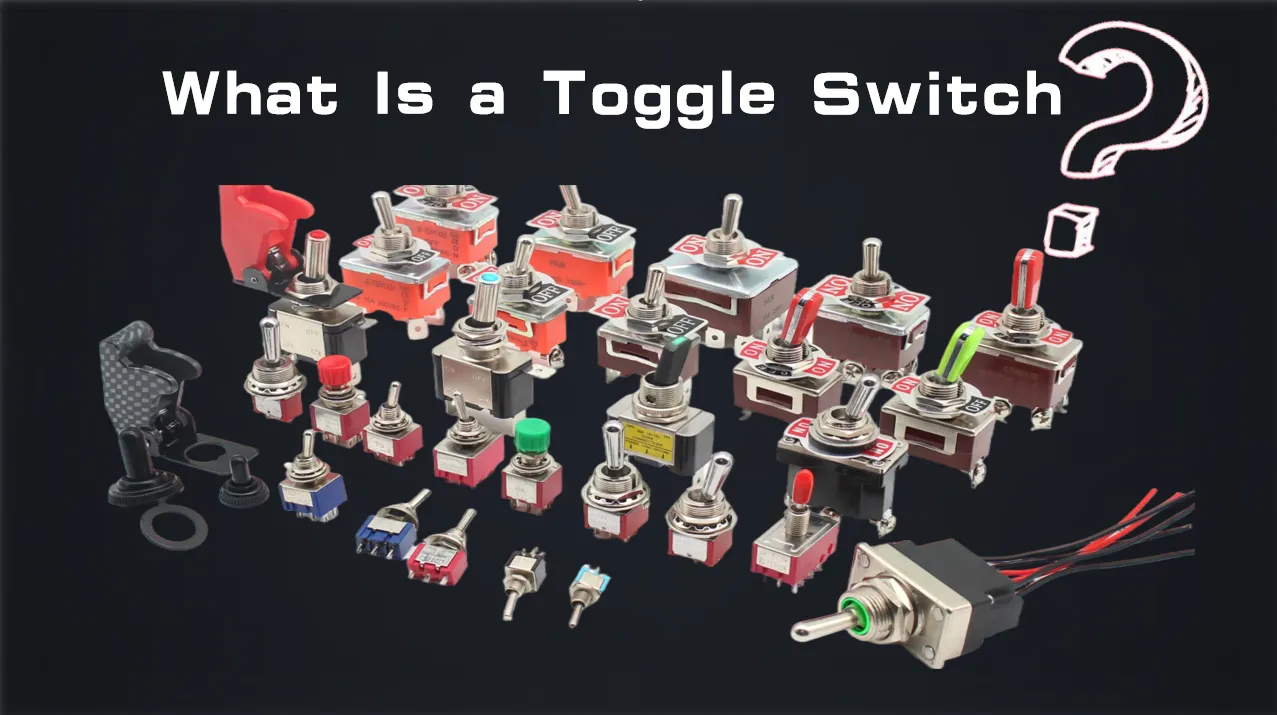
Consider the journey of the toggle from the physical world to our screens. Historically, a "toggle" referred to a small piece of wood, plastic, or metal used to fasten objects by pushing it through a loop – a mechanism for securing or releasing. In computing, this concept evolved into a setting or function that could be switched between two options with a single action. As Britannica Dictionary notes, software allows users to "toggle easily between two different views," highlighting the action-oriented nature of the term. This legacy of immediate, definitive action is deeply embedded in the digital toggle switch.
Modern toggle switches are designed for instant gratification. When a user interacts with a toggle, the state changes *immediately* and *without further confirmation*. This "fire-and-forget" mechanism is perfect for settings like "Enable Wi-Fi," "Dark Mode," or "Receive Notifications," where the user expects the action to take effect the moment they tap or click. This direct manipulation reduces friction and enhances the sense of control users have over their digital environment.
Toggle vs. The Alternatives: Choosing the Right UI Element
While the toggle switch excels at managing independent binary states with immediate effect, it's crucial to understand its distinctions from other UI components like checkboxes and radio buttons. Misusing these elements can lead to confusion and a frustrating user experience. For a deeper dive into this comparison, you can explore our detailed article:
Toggle Switches vs. Checkboxes: When to Use Each UI Element.
Toggle Switches: For Immediate, Independent Actions
Toggle switches are the go-to for settings that:
- Are mutually exclusive (one or the other).
- Trigger an immediate change when interacted with.
- Control an independent feature or setting.
Example: Turning on/off an alarm, activating a VPN, showing/hiding a specific UI element. The moment you flip the switch, the action is done.
Checkboxes: For Multiple, Independent Selections or Confirmations
Checkboxes are best suited for scenarios where:
- Users can select multiple options independently within a group.
- A selection serves as a confirmation (e.g., "I agree to the terms and conditions").
- Changes might require an explicit "Save" or "Apply" action to take effect.
Example: Selecting multiple items in a shopping cart, choosing several subscription preferences (e.g., "Receive newsletters," "Receive promotional offers").
Radio Buttons: For Mutually Exclusive Choices Within a Group of Many
Radio buttons are designed for:
- A group of three or more options, where only one can be selected.
- The choices are clearly distinct and mutually exclusive.
Example: Choosing a single shipping speed (Standard, Express, Overnight), selecting a single payment method from a list. macOS, for instance, often uses radio buttons for groups of up to five mutually exclusive items.
Understanding these distinctions is paramount for crafting intuitive interfaces. A toggle is about instant activation of an independent, binary choice, while checkboxes often imply a potential for group selection or a pending action, and radio buttons are for "choose one out of many."
Mastering the Craft: Best Practices for Toggle Switch Design
Designing effective toggle switches goes beyond mere functionality; it involves adherence to established guidelines and a keen eye for user experience. Leading design systems like Apple's Human Interface Guidelines and Google's Material Design consistently emphasize clarity and accessibility. Our article,
Toggle Switch Explained: GUI Functionality & Design Principles, offers a more in-depth look at these foundational elements.
Clarity and Accessibility are Non-Negotiable
-
Always Include Labels: Never rely solely on color or position to convey a toggle's state or function. A clear, concise label (e.g., "Enable Notifications," "Automatic Updates") is essential. This ensures accessibility for users with visual impairments, who might rely on screen readers, and prevents confusion for everyone else. The label should make sense regardless of the switch's current state.
-
High Contrast: Ensure sufficient color contrast between the toggle's states (on/off) and the background. The active state should be visibly distinct and often more prominent, guiding the user's eye.
-
Contextual Placement: Place toggles within list rows or near the content they affect. This contextual proximity reinforces their purpose and makes the interface feel organized and predictable. Avoid placing them in toolbars unless it's a very specific, well-understood global setting.
-
Adequate Touch Target Size: Especially critical for mobile interfaces, ensure the interactive area of the toggle (the touch target) is large enough for easy tapping. Google's Material Design specifies minimum touch target sizes to accommodate various finger sizes and improve accuracy, reducing frustrating mis-taps.
Visual Feedback and Platform Consistency
-
Instant Visual Feedback: The moment a user interacts, the toggle must visibly change state. This includes the thumb sliding, track color altering, and potentially a ripple effect (on Android) or native platform feedback (on iOS). This immediacy reinforces the direct manipulation model and confirms the action.
-
Consistent Sizing and Appearance: If you have multiple toggles in a form or a list, maintain consistent sizing and visual styling. This creates a cohesive and professional look, reducing visual clutter.
-
Adhere to Platform Guidelines: Each major operating system (iOS, Android, macOS, Windows) has its own design language and conventions for toggle switches. Adhering to these guidelines ensures familiarity and a native feel for users. For example, iOS and iPadOS switches are typically found within list rows for contextual settings, while Android integrates with behaviors like ripple effects for touch feedback.
-
Consider Hierarchical States (Advanced): While primary toggles are binary, some systems (like macOS checkboxes) support "mixed states" for hierarchical options, such as when a parent toggle depends on the state of its child toggles. This is a more complex scenario, but reflects the toggle's versatility in advanced UI structures.
Conclusion: The Enduring Legacy of the Toggle
The toggle switch, a deceptively simple UI element, holds immense power in crafting intuitive and efficient user interfaces. Its ability to instantly switch between two distinct states with clear visual feedback makes it invaluable for binary settings and features. By understanding its core purpose, differentiating it from similar UI components like checkboxes and radio buttons, and meticulously applying best design practices, designers can harness the full potential of the
toggle.
From ensuring accessibility through clear labeling and sufficient contrast to providing immediate, platform-consistent feedback, mastering the toggle switch is about more than just aesthetics – it's about empowering users with seamless control and fostering a sense of confidence in their digital interactions. In an ever-evolving digital landscape, the toggle remains a testament to the enduring effectiveness of simple, well-executed design.